
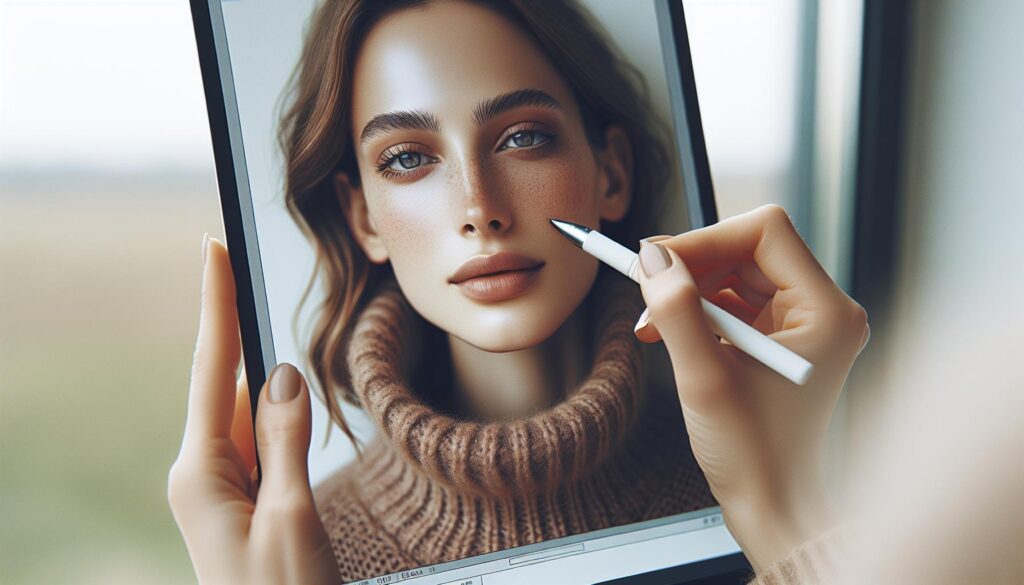

Did you know that one of the most powerful tools for flawless photo retouching and creative edits in Photoshop is the Clone Stamp? This tool allows you to seamlessly copy pixels from one part of an image and paint them onto another, making it invaluable for removing imperfections, duplicating objects, or even reconstructing missing details.Whether you’re a photographer aiming to perfect portraits or a designer refining digital artwork, mastering the Clone Stamp gives you precise control to enhance your images with professional quality. in this guide, you’ll learn step-by-step how to select the right source areas, apply the tool effectively, and avoid common pitfalls-unlocking new creative possibilities and boosting your editing confidence. Keep reading to discover expert tips and techniques that help transform your workflow, turning complex edits into smooth, intuitive processes that elevate your Photoshop skills effortlessly. This mastery of the Clone Stamp is not just a skill but a gateway to polished and compelling imagery that stands out.
Understanding the Clone Stamp Tool and Its Core Features
Few tools in Photoshop combine simplicity and power quite like the Clone Stamp.At its core, this tool functions as a digital photocopier-allowing you to sample pixel data from one part of an image and paint it onto another. While this might sound straightforward,mastering its nuances unlocks incredibly precise control over retouching,restoration,and compositional edits. Unlike automated tools, the Clone Stamp requires your purposeful eye and hand, making it an essential skill for photographers, designers, and digital artists who want to achieve seamless, natural results.
The Clone Stamp operates by letting you define a “source” point, which you select by holding the Alt key (Windows) or Option key (Mac) and clicking on a desired pixel area. From there, you literally “stamp” that sampled content wherever you move your brush. This direct cloning is invaluable when you want an exact copy-for example, duplicating textures, removing unwanted objects without disturbing surrounding details, or reconstructing damaged photo areas.
Core Features That Enhance Precision
- Adjustable Brush Settings: Beyond just size and hardness, you can control opacity and flow. Lower opacity lets you build up the cloned pixels gradually,easing blending with the underlying image.
- Aligned vs. Non-Aligned Sampling: When aligned, the clone source moves synchronously with your brush strokes, maintaining relative positioning. Non-aligned mode resets the clone point each time you release and click again, which is handy for repetitive cloning from the same spot.
- Sample Options: You can choose to clone from the current layer only, or include all visible layers, giving you versatility depending on your workflow complexity.
- Clone Source Panel Integration: This allows rotation, scaling, and flipping of the source content, helping you match perspective or create symmetrical effects.
Understanding these features deeply empowers you to tackle a wide range of edits. For example, when repairing texture-heavy surfaces like skin or fabric, adjusting brush hardness and flow while using aligned sampling can make cloned areas almost undetectable. Conversely, for architectural restoration, flipping and scaling cloned sections can save hours compared to manual painting.
Importantly, the Clone stamp stands apart from healing tools because it copies pixels without attempting automatic blending or tonal correction-which can be a double-edged sword. While this grants unmatched accuracy when you need pixel-perfect replication, it also means your cloning strokes must be deliberate and paired with blending techniques for invisible edits.Learning to leverage it alongside other Photoshop tools paves the way for truly professional results [[1]](https://photzy.com/how-to-use-the-clone-stamp-tool-in-adobe-photoshop/), [[2]](https://www.lifewire.com/photoshop-clone-stamp-tool-tutorial-1697534).

Step-by-Step Guide to Using Clone Stamp Effectively
Mastering the Clone Stamp tool begins with a clear, methodical approach that emphasizes control and patience. Often underestimated, this tool requires a steady hand and a strategic mindset, making it critical to understand not just how to clone pixels but when and where to do it for the most seamless results. Before jumping in, take time to analyze the area you want to retouch-note its textures, lighting, and surrounding details, as these observations will guide where you choose your clone source.
Start by selecting the Clone Stamp tool from the toolbar or pressing S on your keyboard. Next, carefully define your clone source point: hold the Alt key (Windows) or Option key (mac), then click on an area that closely matches the target in color, texture, and lighting. This initial choice is crucial because the better the match, the less obvious the cloning will appear.If you’re working on skin retouching, such as, sampling from a smooth, blemish-free patch will produce natural-looking corrections without texture mismatches.
Once set, gently brush over the area you want to fix or duplicate. Use short,controlled strokes instead of long swipes,paying close attention to how the pixels align with the original surroundings. Hear, toggling aligned sampling on or off becomes important: keeping it enabled moves the clone source in sync with your brush, ideal for evenly textured surfaces, while disabling it lets you repeatedly clone from the same source spot, useful for repetitive patterns like bricks or fabric.
Tips for Effective Cloning
- Adjust brush hardness and size: softer brushes blend edges smoothly, while harder brushes are better for sharp, defined areas.
- Lower opacity and flow: These settings let you build the cloned pixels gradually, helping them blend invisibly into the target without harsh transitions.
- Work on a duplicate layer: Always perform cloning on a new layer to preserve the original image and allow non-destructive editing.
- Frequently reset your clone source: Especially when moving across complex textures, refreshing your sampling point ensures consistent results.
Through deliberate submission combined with constant adjustment of brush settings and clone source points, you’ll avoid common pitfalls like repeated patterns or obvious cloning marks. For instance, removing a distracting object from a landscape becomes less apparent when you clone neighboring textures with varying sources and soft brush edges. Employing this stepwise approach transforms the Clone Stamp from merely a copying tool into a paintbrush of precision, empowering meticulous restorations and creative edits alike.

mastering Clone Source Panel for precise cloning
Few Photoshop features offer the level of granular control over pixel cloning like the Clone Source panel. While many users focus on the basic “Alt/Option+click” sampling and brush application, diving into the Clone Source panel unlocks precision adjustments that can transform a standard clone into a seamless, natural repair or creative effect. This panel’s ability to manipulate clone content independently from your brush strokes is especially valuable when working with textures, patterns, or irregular shapes that require nuanced alignment.
At its core, the Clone Source panel allows you to adjust the origin of your clone in ways that go beyond point-to-point copying. you can move the clone source horizontally or vertically, flip it horizontally or vertically, and even rotate or scale the clone content. For example, when removing distracting elements from architectural photography, flipping the clone source horizontally helps replicate symmetrical brick patterns without manual correction. Likewise, rotating the clone source can help it follow perspective lines more naturally, blending cloned pixels into complex backgrounds with remarkable invisibility.
This tool becomes indispensable when dealing with irregular or complex surfaces such as fabric folds, varied skin textures, or natural environments. Instead of manually repositioning your clone source repeatedly, you can:
- Apply rotation: Rotate the clone source in degrees to match angles in the target area, ideal for surfaces like wood grain or vegetation.
- Flip horizontally/vertically: Mirror the clone source to fit symmetrical or repeating elements,like tiles or patterned wallpaper.
- Scale clone source: resize the clone content to better fit the target area, useful when retouching elements that change size due to perspective.
- adjust multiple clone sources: Track and switch between up to five different clone sources, enabling complex patchwork cloning without interrupting workflow.
For professionals looking to ensure absolute precision,frequently toggling between these transformations can drastically reduce the need for post-cloning touch-ups. Each adjustment lets you align cloned pixels more naturally with the target pixels’ orientation, scale, or texture flow, avoiding telltale signs like repeated patterns or confusing shadows.
Beyond transformation controls, it’s noteworthy to keep an eye on the overlay functions within the panel. By enabling the visual overlay,you can preview exactly where your clone source appears in relation to your brush tip,helping maintain accurate positioning before applying any pixels. This feature reduces guesswork, especially when working on highly detailed edits where a millimeter’s deviation can cause noticeable repeats or mismatched textures.
In practical workflows, pairing Clone Source panel mastery with strategic brush adjustments leads to truly refined results. As a notable example,when eliminating blemishes or objects near curved surfaces like faces or sculptures,small rotations combined with subtle scaling can mimic natural contours rather of creating flattened or distorted clones. Thus, the Clone Source panel empowers users to move from mechanical copying to artistic restoration-turning cloning into a flexible, responsive tool for precision editing.
embracing the Clone Source panel’s full capabilities elevates your cloning technique by marrying control with creativity-essential for producing edits that feel both flawless and organic.
Advanced Techniques: Blending and Layer Masking with Clone Stamp
achieving truly seamless cloning in Photoshop goes far beyond simply copying pixels from one area to another. Advanced blending methods and layer masking are essential tools to integrate cloned patches naturally into your image, preserving texture, light, and tonal consistency. When you rely solely on the clone Stamp tool without thoughtful blending,the risk of creating noticeable edges or duplicated patterns increases. by combining the Clone Stamp with layer masks and blending adjustments, you gain nuanced control over which parts of the cloned content are visible and how they merge with the underlying image.
One practical approach involves performing cloning work on a separate layer rather than directly on the background or base image. This nondestructive workflow lets you apply a layer mask to the cloned layer, enabling selective revealing or concealing of cloned areas with a soft brush. For example, after cloning a patch to cover an imperfection, you can paint on the mask with varying brush opacity to gently fade the edges of the cloned section into the surrounding pixels, creating smoother transitions. Using a soft-edged brush on the mask is key to avoiding harsh cutoffs that reveal cloned boundaries. This technique effectively transforms the flat clone action into a gradient blend that appears organic.
Utilize Blending Modes and Brush Settings for Natural Integration
Experimenting with blending modes on your clone layer can enhance how the cloned pixels interact with the underlying image. Modes like Lighten,Darken,or Overlay allow you to match the light and shadow details more fittingly,especially when dealing with complex lighting conditions.Additionally, adjusting the clone brush’s density and flow settings can help control the strength of your cloning strokes, letting you build up texture gradually rather than imposing a hard replacement. As a notable example, lowering the brush density introduces subtle clarity, which helps merge textures and colors softly during cloning [3].
Practical Tips to enhance Blending When Cloning
- Sample frequently: Resample your clone source frequently enough (alt/option + click) to capture color and lighting variations, avoiding repeated patterns that stand out.
- Use multiple clone layers: Separate cloning tasks by type or area, enabling specific blending adjustments and masking without affecting unrelated edits.
- Leverage feathered selections: When cloning parts that require exact placement, consider defining a selection and feathering it to soften edges before cloning in the area.
- Integrate the Healing Brush: Follow cloning with the Healing Brush tool to automatically blend colors and textures, smoothing minor inconsistencies.
By thoughtfully applying these layering and blending strategies, you’ll transform cloning from a mechanical pixel copy to a refined restoration that preserves the natural feel of your image. This level of control is especially vital when working on portraits, landscape retouching, or architectural photography where visual coherence is paramount.
How Layer Masks Amplify Clone Stamp Flexibility
Layer masks enable non-permanent edits, giving you the freedom to refine your cloning progressively. If a cloned section looks too strong or unnatural, you don’t need to undo or repaint entirely-simply toggle brush opacity on the mask to blend parts away or add back details. This incremental approach supports experimentation and alleviates pressure for perfection on the first attempt. Combining mask transparency with soft brushes also helps combat one of the Clone Stamp’s most common pitfalls: obvious cloning lines or patches.
blending and masking techniques together elevate the Clone Stamp from a blunt retouching instrument into a surgical tool for pixel-perfect edits. mastering these methods will significantly enhance your Photoshop efficiency and the quality of your final images.
For more detailed insights on blending nuances with the Clone Stamp,including adjusting brush density for subtle transparency,refer to practical tutorials like those found on Clip Studio’s tips,or user discussions on blending challenges in Photoshop communities [3].
Creative Uses of Clone Stamp Beyond Basic Retouching
Few Photoshop tools offer as much versatility and creative potential as the Clone Stamp. While it’s widely recognized for its role in correcting imperfections or removing unwanted objects, the Clone Stamp’s scope stretches far beyond mere retouching. When harnessed imaginatively, it becomes a powerhouse for unique artistic effects, composition enhancement, and intricate texture creation.
One compelling application lies in digital art and texture synthesis. Artists often use the Clone Stamp to replicate complex textures or patterns from one area of an image to another, effectively ”painting” with pixels. This approach is invaluable when creating custom backgrounds, extending environments, or simulating materials like fabric, wood grain, or natural surfaces. Because the Clone Stamp copies exact pixel data, it delivers nuanced control over texture continuity that brushes or filters cannot replicate.Adjusting brush hardness and opacity adds further customization, allowing layers of texture to build organically.
Beyond texture work, the Clone Stamp is instrumental in photomontage and compositing workflows. It can seamlessly duplicate and relocate objects within a scene to craft entirely new visual arrangements. For example, multiplicity effects-such as replicating a subject multiple times in one frame-or reconstructing damaged areas in collage art become far easier with precise cloning.Paired with layer masks, this technique lets you experiment fluidly, progressively refining your composition without permanent changes.
Inventive Practical Tips for Extended Clone Stamp Usage
- Pattern creation: Use the Clone Stamp to pull small motif samples from a photo and tile them creatively over areas where you need a consistent repeat pattern, such as wallpaper or fabric designs.
- Custom brushes: Clone distinct shapes or textures onto a new document and define them as brushes for repeatable,personalized effects that integrate the Clone Stamp’s pixel-perfect sampling.
- Visual storytelling enhancements: Alter background elements subtly by cloning selective parts to redirect viewers’ attention or modify atmosphere, like cloning falling leaves or clouds to intensify mood.
- Restoration artistry: Beyond photo repair, artists restoring old paintings or past images digitally can use the Clone Stamp to reconstruct missing details while keeping the original’s character intact.
The Clone Stamp’s power comes from its precision and flexibility-traits that reward patience and experimentation. Mastering its creative applications transforms it from a simple fix tool into an artistic extension, empowering you to craft compelling visuals that stand out while maintaining impeccable realism. Whether designing surreal scenes or refining delicate textures, embracing the Clone Stamp’s broader capabilities will elevate your Photoshop projects substantially.
Troubleshooting Common Clone Stamp Issues and How to Fix Them
When the Clone Stamp tool doesn’t behave as expected, it can quickly stall your workflow and cause frustration. Though, many issues stem from common, easily overlooked mistakes that can be resolved quickly once you know what to look for. One of the most frequent stumbling blocks is neglecting to define the source point before trying to clone. Remember, the tool requires you to Option-click (Mac) or Alt-click (Windows) on the exact area you want to sample from. Without this, Photoshop will stubbornly refuse to clone, often showing an error along the lines of “could not use the clone stamp tool because the area to clone has not been defined” [3].
Another common hiccup relates to layer selection. If you mistakenly try to clone on a locked background layer or an invisible layer, the clone Stamp won’t produce visible results. Always check that the target layer is unlocked, visible, and active before you start cloning. Similarly, ensure the sample options in the tool’s settings reflect your intent: whether you want to clone from the current layer, current and below, or all layers. Mismatched sampling settings can lead to ghosting effects or failure to replicate the intended texture or color.
Performance glitches, such as the cursor or brush not displaying correctly, can sometimes come down to Photoshop preferences or GPU conflicts. Resetting the Clone Stamp tool or reverting Photoshop preferences can frequently enough put things back in order.Additionally, watch out for layer masks or selections that might be active and restricting your cloning area without you realizing it-disabling any selections or masks temporarily can definitely help identify if they’re interfering.
- Verify your source point: Always Option/Alt-click to set a precise clone source before painting.
- Check layer visibility and locking: Unlock and select the right layer; cloning won’t work on hidden or locked layers.
- Configure sampling options thoughtfully: Choose if cloning should consider just the current layer or multiple layers for flexibility.
- Beware of active selections or masks: Deselect or disable masks to avoid accidental cloning constraints.
- Reset tool and preferences: When stuck, a reset can solve unexpected glitches without needing drastic measures.
For many users, subtle adjustments in brush settings such as hardness, opacity, and flow can dramatically change cloning results. If your Clone Stamp produces unnatural seams or repetitive patterns, mixing different brush hardness levels and lowering opacity for gradual blending can help the cloned area harmonize better with its surroundings. These tweaks can also assist when working with textures or complex backgrounds where a harsh brush edge would reveal obvious editing.
Ultimately, patience and experimentation are key.Sometimes what seems like a tool malfunction turns out to be a setting that needs fine-tuning or a process step inadvertently overlooked. Keep these troubleshooting checks in mind, and your experience with the Clone Stamp will be smoother and more productive, allowing you to focus on achieving flawless edits or creative compositions without technical distractions [1] Optimizing Clone Stamp Settings for Different Image types
Finding the perfect balance of Clone Stamp settings can transform your retouching workflow from cumbersome to effortlessly precise, especially when working with varied image types. Different textures, lighting, and detail levels require intentional tweaking of brush hardness, opacity, sample settings, and blending modes to achieve seamless results that look natural rather than artificially patched. Images with smooth, uniform areas like skies or skin benefit from a soft-edged brush with lowered hardness and reduced opacity.This allows the cloned pixels to blend gently into the surrounding tones without producing harsh edges or repetitive patterns that distract the eye. Such as, when retouching portraits, dialing down the opacity between 20-40% and using a brush hardness below 30% can help maintain the subtle gradations crucial to skin texture while removing blemishes or color inconsistencies. Contrastingly, highly textured images such as foliage, fabric, or architectural details demand a firmer brush to preserve sharpness and detail when cloning. Here, setting the brush hardness around 70-90% retains texture integrity while still covering unwanted elements effectively. Another essential tool in tailoring your cloning is the sampling source option. Photoshop allows you to sample from the current layer only, current layer and below, or all layers. When working on complex layered documents-say, a composite image or one with adjustment layers-using the “Current & Below” sample setting can let you clone consistently without flattening your entire project prematurely. This is particularly useful for artists or photographers wanting to maintain non-destructive workflows but still needing to address background details or stray objects without flattening layers.
| Image Type | Recommended Brush Hardness | Opacity Range | Sample Setting | Best use Case |
|---|---|---|---|---|
| Portraits (Skin Retouching) | 15%-35% | 20%-40% | Current Layer | Smooth,subtle blending to fix blemishes and pigment irregularities |
| landscapes / Nature | 60%-90% | 50%-100% | Current & Below | Preserving texture in foliage,rocks,and natural surfaces while removing distractions |
| Architecture / Textured Surfaces | 70%-90% | 70%-100% | All Layers | Maintaining sharp edges and detailed patterns while cloning on multi-layer composites |
| Flat or Uniform Backgrounds | 5%-25% | 10%-30% | Current Layer | Even blending over smooth areas like skies or walls without visible brush marks |
Harnessing these settings thoughtfully also means taking into account the lighting and color context. Sometimes simply enabling the “Aligned” option (which continuously samples relative to the initial source) versus unchecking it to reset the source point every stroke gives you creative control to avoid visible repetitions.Additionally, consider changing hardness and opacity mid-session based on the progress of your edit – start with lower opacity to tempo the blend, and then firm up details with higher opacity strokes.
Mastering the Clone Stamp tool for different image types equips you with versatility and precision, saving time and delivering natural-looking results. Experimentation paired with understanding the nuance of each image ensures your cloning work never looks like a patch but rather an organic part of the whole photograph.
Combining clone Stamp with Other Photoshop Tools for Powerful Edits
Few Photoshop techniques deliver the precision and control of the Clone Stamp tool, but its true power unfolds when paired strategically with other tools in your editing arsenal. By combining the Clone Stamp with features like layer masks, the Healing Brush, and adjustment layers, you can sculpt highly refined edits that look natural and polished, avoiding the telltale signs of simple pixel copying.
One of the most transformative combinations is using layer masks alongside the Clone Stamp tool. Instead of cloning directly onto a flattened image or a background layer, create a new blank layer for your cloning work. This non-destructive approach lets you paint cloned pixels on a separate layer,preserving your original content underneath. then, apply layer masks to selectively hide or reveal cloned areas, allowing subtle blending and the ability to adjust portions of the cloning without undoing your entire effort. For example, when retouching fabric or skin, selectively masking parts of the cloned layer can help you seamlessly integrate texture without creating repetitive patterns or unnatural edges.
In addition to layer masks, the Healing brush and Spot Healing Brush tools complement cloning by intelligently blending texture, color, and lighting as they heal imperfections.While the Clone Stamp duplicates exact pixels, these healing tools analyze surrounding pixels, making them ideal for quick fixes on uneven surfaces or small blemishes. Starting with cloning to cover major distractions or objects,and then finishing with healing tools,can give your edits a flawless finish that’s difficult to achieve with the Clone Stamp alone.
Adjustment layers also play a crucial role when combined with cloning. After using the Clone Stamp to fix or remove unwanted elements, placement of adjustment layers-such as Curves, Levels, or Hue/Saturation-allows you to refine overall brightness, contrast, or color balance in a nondestructive way. This ensures that cloned areas blend harmoniously with the rest of the image irrespective of varying light or color. Grouping cloned layers and adjustment layers together further streamlines your workflow, enabling quick toggling of visibility to compare before-and-after results.
- Use a new blank layer for cloning: Maintain flexibility and non-destructive editing.
- Mask cloned layers: Blend edges and control visibility with precision.
- Finish with healing tools: soften cloned textures and correct color mismatches.
- Apply adjustment layers: Harmonize luminosity and tones across the whole image.
- Leverage layer groups: Organize related edits for easy management.
By integrating the Clone Stamp tool into a broader Photoshop workflow featuring complementary tools and techniques, you unlock a level of artistry that goes far beyond spotting out distractions or duplicating pixels. This synergy allows you to craft edits that are not only technically proficient but visually compelling, maintaining consistent texture, tone, and lighting that keeps your images believable and vibrant. Embracing these combinations also promotes a flexible, non-destructive workflow-critical for professional photographers and digital artists striving for perfection at every stage.
Frequently asked questions
Q: How can I use the Clone stamp tool to restore old or damaged photos in Photoshop?
A: To restore old photos, use the Clone Stamp tool to carefully sample undamaged areas and paint over scratches or tears. Adjust brush hardness and opacity for seamless blending. Combine this with layer masking for nondestructive edits. For more precise restoration tips, see the *Advanced Techniques* section of the guide.
Q: What are the best Clone Stamp brush settings for cloning textured surfaces?
A: For textured surfaces, use a soft-edged brush with moderate opacity (40-70%) and flow to gently blend pixels.Lower hardness avoids harsh edges, making cloned areas blend naturally. Experiment with size based on texture detail. Optimize settings further by referencing the *Optimizing Clone Stamp Settings* section.
Q: How does the Clone Stamp tool differ from the Healing Brush in Photoshop?
A: The Clone Stamp tool copies exact pixels from a source, ideal for precise replication, while Healing Brush blends texture, color, and lighting for natural fixes. Use Clone stamp for exact duplication and Healing brush for subtle corrections. See *Combining Clone Stamp with Other Photoshop Tools* for effective workflows.
Q: When should I use Clone Source Panel to improve cloning accuracy?
A: Use the Clone Source Panel to rotate, scale, or flip the sampled area, which is crucial for matching perspective or correcting repetitive patterns.It enhances control for complex cloning tasks. Explore detailed usage in the *Mastering Clone Source Panel* section of the guide.
Q: Why is sampling from different layers important when using the Clone Stamp tool?
A: Sampling from multiple layers allows nondestructive edits and flexible adjustments. It also helps preserve original images while combining cloned elements across layers. Refer to *Combining Clone Stamp with Other Photoshop Tools* to maximize layer-based cloning techniques.
Q: How can I prevent visible edges or seams when using the Clone Stamp tool?
A: Prevent edges by using a soft brush with lowered opacity and frequently resampling from nearby areas to vary the source. Blending with layer masks also hides seams effectively. For step-by-step strategies, see *Advanced Techniques: Blending and Layer Masking with Clone Stamp*.
Q: What workflows help speed up cloning when handling complex backgrounds in Photoshop?
A: to speed cloning on complex backgrounds, use lower brush opacity, clone in small strokes, and organize layers for targeted edits. Utilize the clone Source Panel for precise adjustments to reduce redo time.More efficiency tips are available in the *Troubleshooting Common Clone Stamp Issues* section.
Q: How can I integrate Clone Stamp with other Photoshop retouching tools for professional results?
A: Combine Clone Stamp with Healing Brush and Patch tool for seamless retouching-Clone Stamp for exact pixel replacement, Healing Brush to blend imperfections, and Patch tool for larger corrections. This synergy creates polished edits. See *Combining Clone Stamp with Other Photoshop Tools* for detailed workflows and expert advice.
—
*explore these FAQs alongside our complete mastery guide to unlock the full potential of the Clone stamp tool and achieve professional-level photo edits every time.*
Future Outlook
Mastering the Clone Stamp tool opens a world of creative possibilities, enabling you to seamlessly retouch images and elevate your photoshop skills to a professional level. Now that you understand the fundamentals and advanced techniques behind cloning pixels with precision, it’s time to apply these skills in your next project-don’t wait to transform your images with clarity and confidence.For deeper insights, explore our guides on Photoshop retouching tips and advanced masking techniques to enhance your editing workflow even further.
Ready to expand your photo editing toolkit? Subscribe to our newsletter for exclusive tutorials, or dive into our product pages featuring top design resources that complement the Clone Stamp’s capabilities. if you have questions or want to share your experiences, join the conversation in the comments below-we love seeing how users put these tools into action. Keep experimenting, stay curious, and revisit us for fresh content that keeps your Photoshop skills sharp and ahead of the curve. your journey to flawless edits starts here.


